
Connect an Account

The option to connect more than one Buffer or Hootsuite account to a single Plugin instance is available in
WordPress to Buffer Pro 5.4.0, available June 30th 2025 23:59 UTC
WordPress to Hootsuite Pro 2.8.0, available June 30th 2025 23:59 UTC
This functionality is not available in WordPress to SocialPilot Pro
If you’re working through multiple WordPress sites, connecting each to different Buffer accounts, for each site you’ll need to open a new incognito / private browsing window / tab, login to your WordPress site and start the connection process again. Buffer will then prompt you to login to the applicable Buffer account.
To connect one or more Buffer or Hootsuite Accounts to your single Plugin installation:
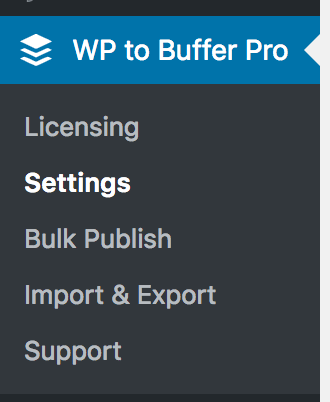
In the WordPress Administration interface, click on the Plugin Name > Settings
Next, click the Connect Account button below the existing connected accounts:
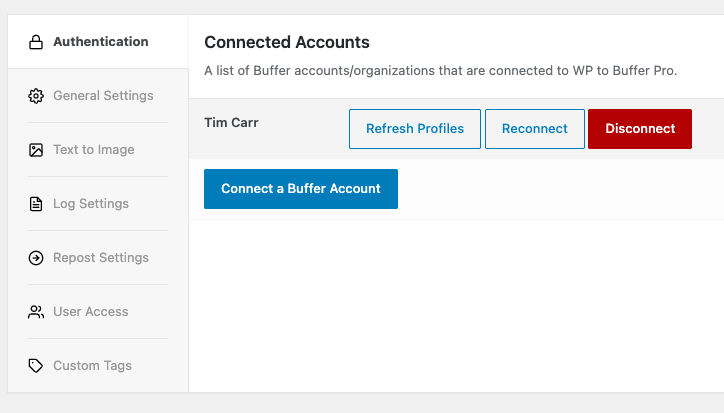
If no accounts are yet connected, you’ll instead see a screen prompting you to connect your first account:

Confirm that the next screen asks for some form of authorization for WordPress to Buffer / WordPress to Hootsuite. Permit this by clicking Allow, Connect or similar.
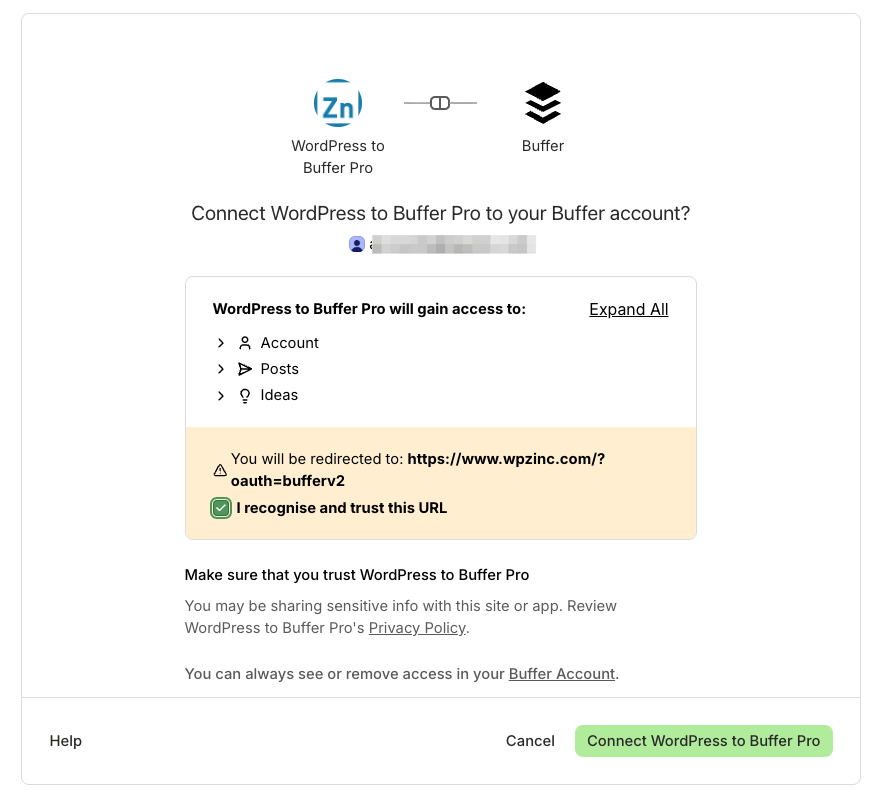
Buffer: Logged into the wrong Buffer account for the site you’re connecting? Open a new incognito / private browsing window / tab, login to your WordPress site and start the connection process again. Buffer will then prompt you to login to the applicable Buffer account.
If the process was successful, confirmation will be displayed on screen.
Navigate back to the Plugin Name > Settings, noting the account is now connected:
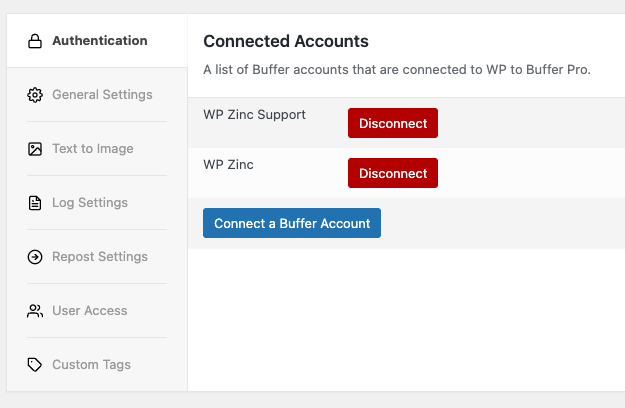
Buffer: If your Buffer account belongs to more than one organization/team, you’ll see all organizations/teams connected. Refer to the Disconnect section below to remove any organizations/teams you don’t want to post to.
Refresh Profiles
The option to refresh profiles is available in:
WordPress to Buffer 6.1.1
WordPress to Buffer Pro 6.1.1
If the list of scial media profiles connected to are not reflected when managing settings in the Post, Page or Custom Post status settings screens, you’ll likely need to refresh the profiles.
- In the WordPress Administration interface, click on the Profile Name > Settings
- Click the Refresh Profiles button beside the existing connected account:
Reconnect an Account
If you are experiencing errors from Buffer regarding fetching profiles, posting posts or other API errors, you may wish to reconnect an existing connected account.
The Reconnect button will display if the current credentials have expired. If it is displayed, it does not mean there is a problem. The Plugin will attempt to update those expired credentials the next time an API operation is performed (sending a post to Buffer, fetching profiles, fetching account information etc). This is normal, correct and expected behaviour.
- In the WordPress Administration interface, click on the Profile Name > Settings
- Click the Reconnect button beside the existing connected account:
- Confirm that the next screen asks for some form of authorization for WordPress to Buffer / WordPress to Hootsuite. Permit this by clicking Allow, Connect or similar.
- If the process was successful, confirmation will be displayed on screen.
Disconnect an Account
To disconnect an account, and its associated social media profiles:
- In the WordPress Administration interface, click on the Profile Name > Settings
- Click the Disconnect button beside the existing connected account: