

MCP requires Page Generator Pro 6, available Monday 7th September 2026 23:59 UTC.
Introduction
This tutorial builds a set of local service pages end‑to‑end using Page Generator Pro’s MCP server and an AI client. We’ll create pages for one service across many nearby towns — “Bicycle Repair in {town}” for towns within 20 miles of Birmingham — and let the AI do the work: creating the location Keyword, building a feature‑rich Content Group, generating a preview for us to review, and then generating the full set.
We’ll use Claude Desktop, but you’re free to use the AI client of your choice. You’re also not limited to a single service and set of location pages – see the Prompts Documentation for ready made prompts (for example, but not limited to, “Services in Locations”, “Location Directory”, “Comparison”, “Listicle” etc), or enter your own prompt to generate what you need.
If you’re not familiar with Page Generator Pro’s key concepts of Keywords and Content Groups, it’s recommended to review the documentation first. Understanding Page Generator Pro’s data structures and terminology will help when it comes to using AI and this tutorial. In short:
- Keywords store the data that is cycled through when generating content
- Content Groups are templates that reference Keywords and other dynamic information, from which all possible content is generated
Prerequsites
- Page Generator Pro 5.7.0 or higher
- WordPress 6.9 or higher
- Page Generator Pro’s MCP server is enabled and your AI client is connected
- An AI provider (e.g. Gemini, OpenAI) API key is configured at Page Generator Pro > Settings > Integrations, so AI text and AI images can be generated.
- A location provider is configured at Page Generator Pro > Settings > Generate Locations, so nearby towns can be looked up.
If you’re not sure, start with the setup prompt (or just ask “Check my Page Generator Pro setup”) — it verifies all of this and helps you fix anything missing.
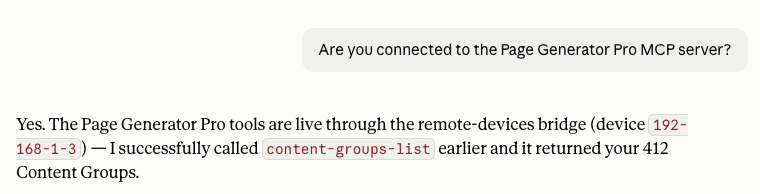
Check Connection
Check that the AI client is connected to Page Generator Pro’s MCP server:
Are you connected to the Page Generator Pro MCP server?
Select Prompt
Start the Service in Locations prompt:
- Open the “+” menu
- Choose Connectors > Add from page-generator-pro
- Select “Single Service in Locations pages”
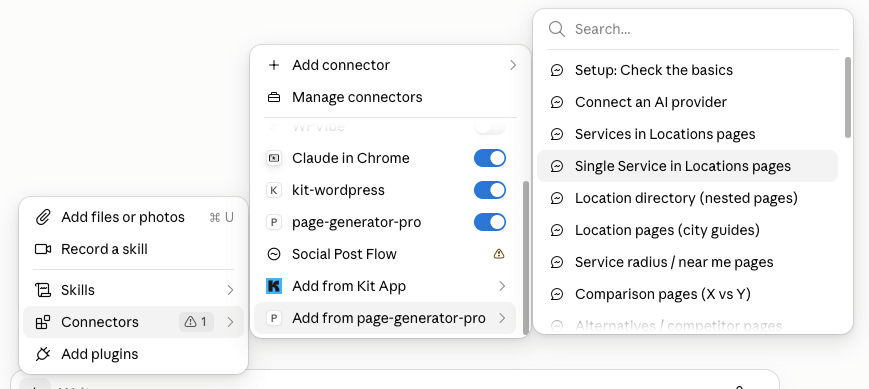
You can also enter your own prompt – for example, “Using Page Generator Pro, build pages for my bicycle repair service across towns within 20 miles of Birmingham”. Prompts are more specific and will prompt questions and information.
Answer Questions
Your AI client will ask for a few initial decisions. For this example:
- Editor: Block (or Classic, if you’re using the Classic Editor)
- Service: Bicycle Repairs
- Locations: Towns within a 20 mile radius of Birmingham, UK
- Post Type: Page
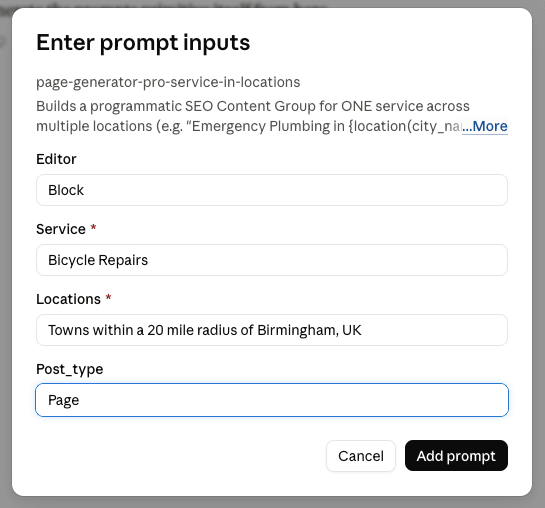
Click Add Prompt, and then instruct the AI client to run the prompt with Run this prompt
It’s likely your AI client will ask further questions to confirm some decisions or request additional information.
Your questions may be slightly different. This depends on the prompt used, noting your AI client will best determine what to ask.
Keyword and Content Group Creation
Your AI client will then:
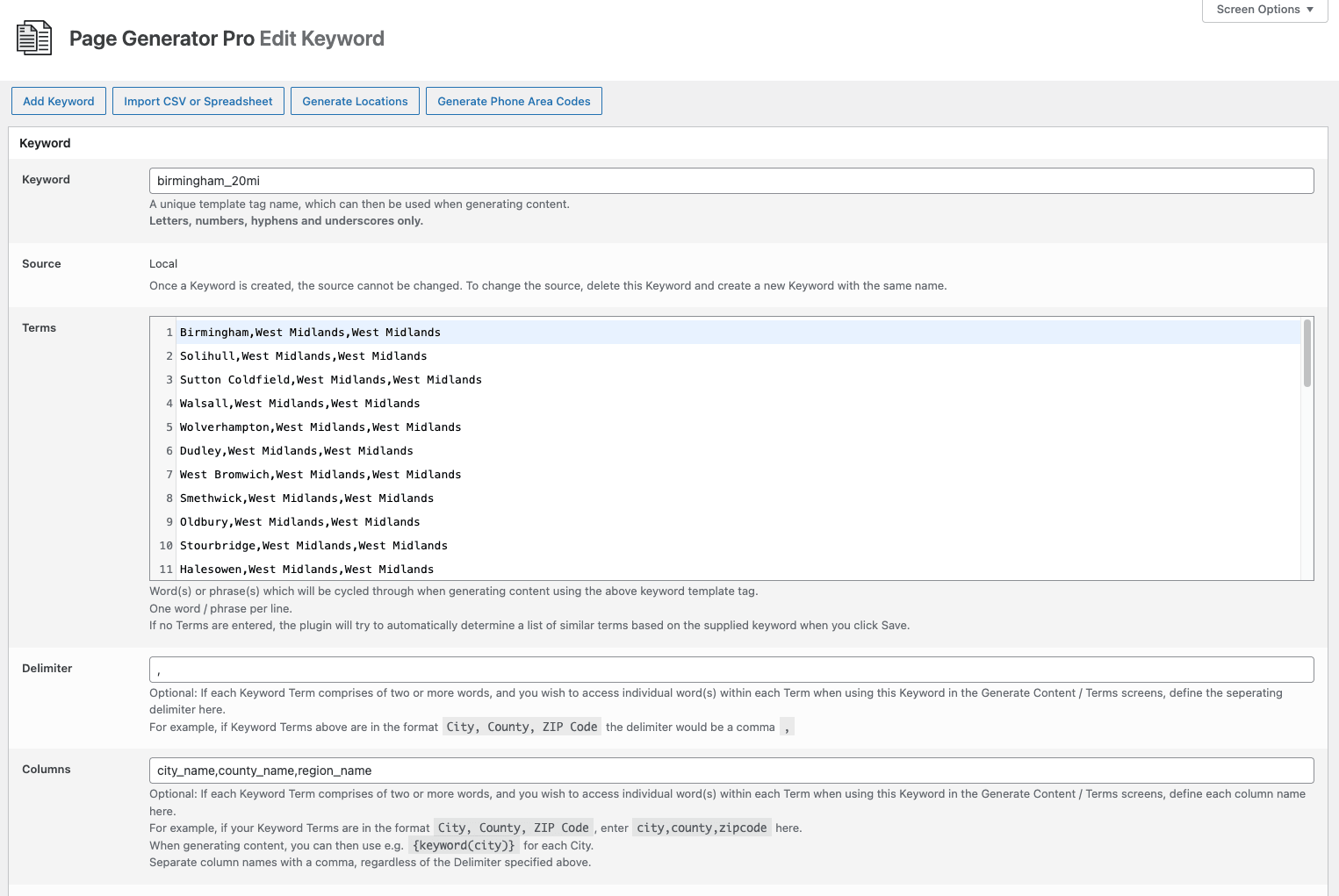
- Create a location Keyword containing the nearby towns, each with its city, county and latitude/longitude columns — everything the page template needs. For example, a 20‑mile radius of Birmingham returns around 30 towns.
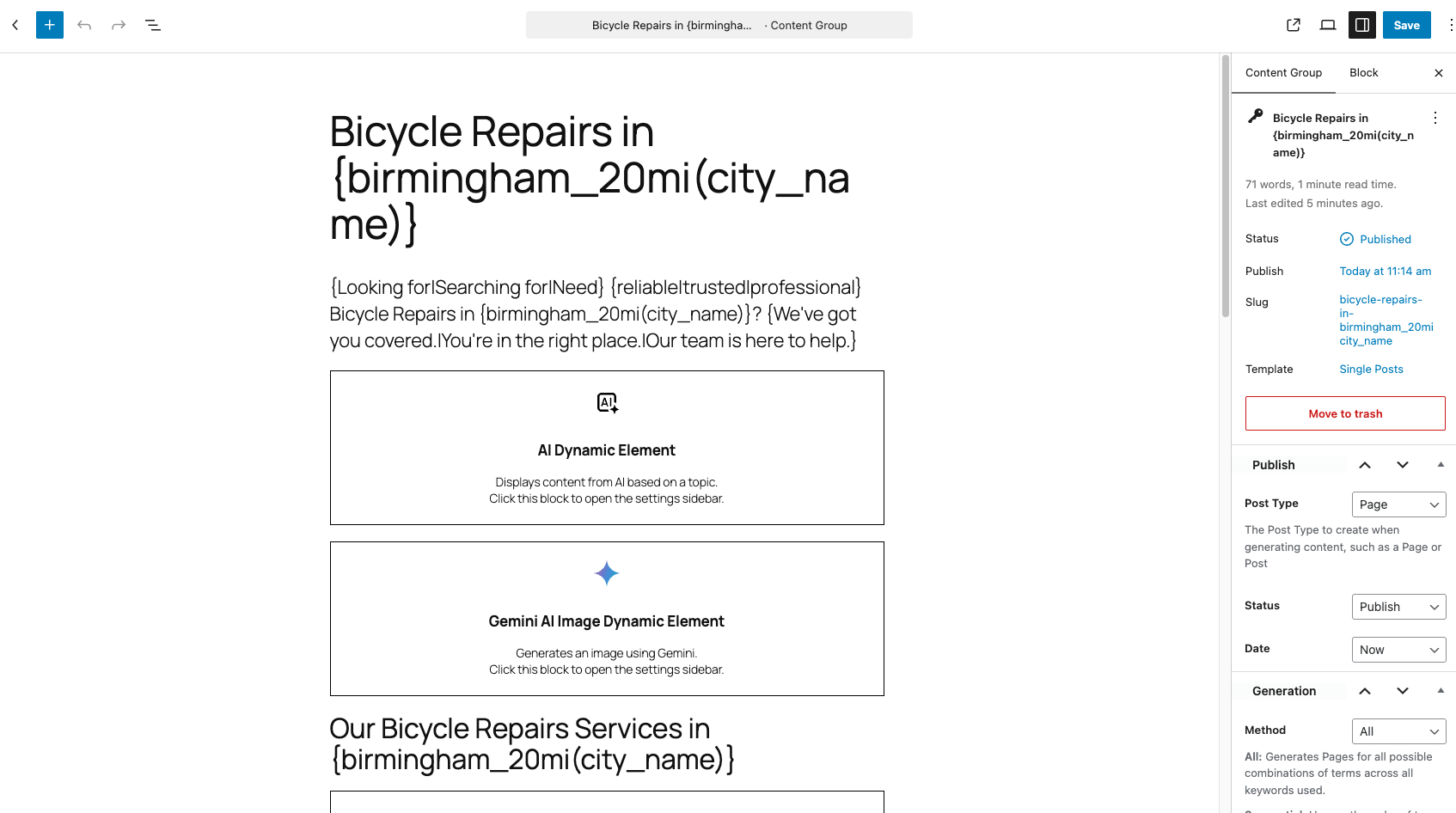
- Creates the Content Group template, titled “Bicycle Repair in {location}”, with pre-filled content:
- A spintax introduction (varied per page).
- An AI‑written introduction and service section (unique per town).
- An AI image relevant to the service and town.
- “Why choose us” and FAQ sections.
- Related Links so every generated page links to the others.
- A Google Map centred on each town.
- A clear call to action.
As this work progresses, your AI client may request your permission to run specific tasks/tools, which you’ll need to allow once or allow for this task.
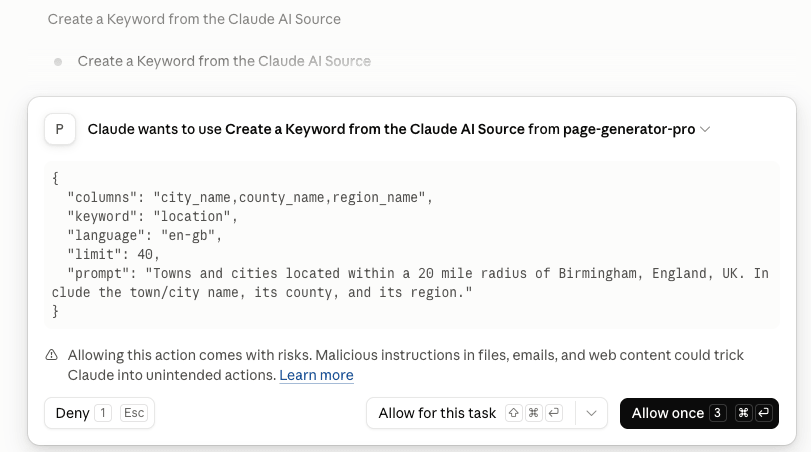
Your AI client will also detect any issues – in this example, the configured location provider wasn’t accessible over MCP, so the AI client presents us with other options to generate locations:
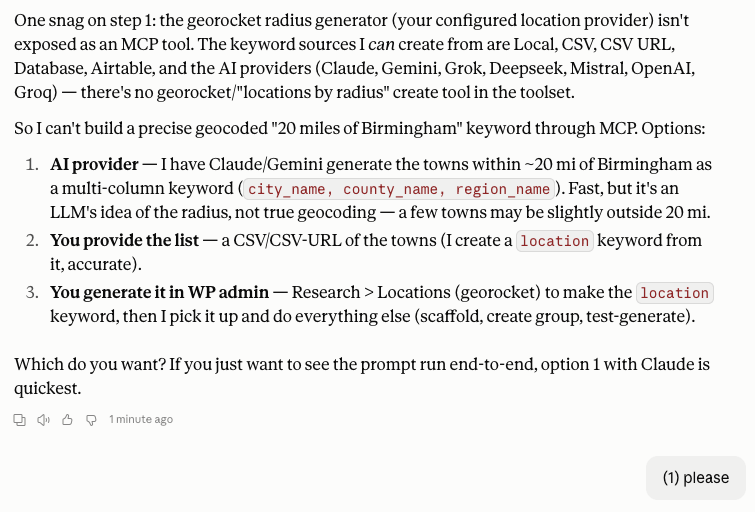
Again, content may vary depending on the prompt used, and what the AI client determines is best.
Once completed, the AI client will report the Keyword and Content Groups that were created
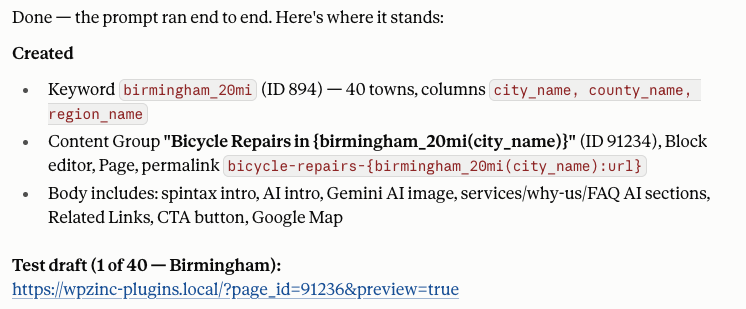
In WordPress, we can see the Keyword and Content Group that was created
Test
Before publishing anything, the AI will run the Test functionality to generate a single Page in draft mode, providing a preview URL for you to check – for example:
https://www.example.com/?page_id=11&preview=true
Nothing is published at this stage — it’s a draft you can review. Open it and check:
- The AI text reads well and is genuinely about that town.
- The image loaded.
- The Related Links and map appear.
- The title, permalink and calls to action are correct.
This one page is the template every town’s page will follow.
Tweaks
If you want changes — different calls to action, an extra section, a phone number, a different image style — prompt your AI client to do so. For example:
Change the call to action to link to /book-online/ and add our phone number 0121 123 4567.
The AI updates the Content Group and test‑generates again so you can re‑review. Repeat until you’re happy.
Some users prefer to edit the Content Group directly in WordPress at this stage – for example, to build a more complex, feature rich layout, or to make more accurate adjustments. If you do this, your AI client will pick up any changes for subsequent tests and generations.
Generate
Once you’re satisfied with the preview, tell the AI to generate everything:
Generate all pages for this Content Group
The AI generates each town’s page (skipping any that already exist). Because every page uses AI text and its own AI image, a larger run takes a few minutes. You can ask for progress at any time:
How's the generation going?
When it finishes, you have a unique, feature‑rich page for every town — each with its own AI‑written content, image and map — all internally linked.
What’s next
This tutorial is a gentle introduction to the power of MCP. There’s no limit on what you can instruct Page Generator Pro to produce:
- Try other prompts: From a Location Directory for a Region › County › City structure, through to a Comparison, Listicle, FAQ or Product in Location pages.
- Use
improve-content-groupon an existing group to add missing elements or strengthen the content. - Use
audit-content-groupto review a group for SEO gaps before generating.
Tips
- Always review the test page before generating the full set. It’s the quickest way to catch a wording or layout issue before it’s repeated across every page.
- Reconnect your client after upgrading the Plugin so it picks up any new tools, prompts or templates.
- AI images and AI text cost API credits with your provider — a large run makes one image call and several text calls per page.