
There are two ways to license your WordPress Plugin:
- Via the Licensing screen within the Plugin, or
- By defining a constant in your
wp-config.phpfile
Licensing Screen
Once activated, the Plugin will prompt you for a license key:

Don’t see a prompt for a license key? You need to complete the Installation steps first.
Click on the Plugin’s name in the WordPress Administration menu.
On the following screen, you can enter your license key.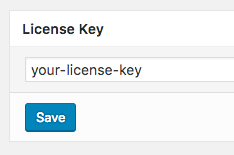
Don’t know your license key? We sent a copy of your license key to your email address, as well as storing it in your Account.
Once you have entered your license key, click Save and ensure that the confirmation message displays to confirm that a valid license key has been entered: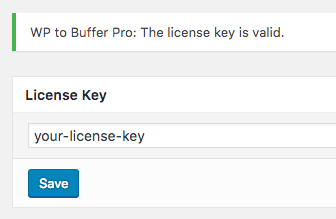
Click the Plugin name’s menu entry in the WordPress Administration again to see the available options for this Plugin.
wp-config.php
Alternatively, you can define the license key by adding the following to your wp-config.php file:
define( 'PRODUCT-NAME-PRO_LICENSE_KEY', 'your_license_key' );PRODUCT-NAME-PRO_LICENSE_KEY is the name of the WordPress Plugin the license key applies to. Please note the use of dashes and underscores – we recommend copying the below constants to ensure they’re correct.
- Comment Rating Field Pro:
COMMENT-RATING-FIELD-PRO-PLUGIN_LICENSE_KEY - Page Generator Pro:
PAGE-GENERATOR-PRO_LICENSE_KEY - WP to Buffer Pro:
WP-TO-BUFFER-PRO_LICENSE_KEY - WP to Hootsuite Pro:
WP-TO-HOOTSUITE-PRO_LICENSE_KEY - WP to SocialPilot Pro:
WP-TO-SOCIALPILOT-PRO_LICENSE_KEY
If the license key constant is setup correctly, the Licensing screen on the WordPress Administration will have the licensing field greyed out: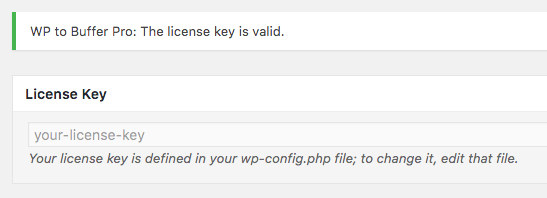
This is required for Multisite installations, where you wish to Network Activate a Plugin and not have to manually enter the license key for each Site on the Multisite Network.
Common Issues
Unable to communicate with the licensing server
You will need to work with your web host to ensure that they update their root certificate from the expired DST Root CA X3 to the newer ISRG Root X1. They can (typically) perform this by updating their OpenSSL version to 1.1.0 or greater:
- https://www.openssl.org/blog/blog/2021/09/13/LetsEncryptRootCertExpire/
- https://letsencrypt.org/docs/dst-root-ca-x3-expiration-september-2021/
This is not an error with our licensing server; use the below check to confirm our correct provision of ISRG Root X1:
https://decoder.link/sslchecker/www.wpzinc.com/443
The number of domains this license key can be used on has been exceeded
This is due to one of the following:
1. You are attempting to use a Single site license on a second site.
See Docs to change the site associated with the license key.
2. You’re using the Plugin on a development environment that we do not recognize
We recognise the following IP addresses and domain names as development environments, which do not count towards your license limit:
localhost
127.0.0.1
10.0.*
192.168.*
.dev
.local
.localhost
.test
3. Your WordPress Address (URL) at WordPress Admin > Settings > General does not match the canonical URL of your site.
The licensed domain must match the URL your site resolves to after any server-side redirects.
For example, if visiting https://www.example.com redirects to https://example.com, then:
- WP Admin > Settings > General > WordPress Address (URL) and Site Address (URL) must both be set to
https://example.com(the redirect destination) - The license must be activated on
https://example.com
If your site redirects in the opposite direction (https://example.com → https://www.example.com), then both settings and the license must use https://www.example.com.
http:// vs https:// is treated the same way — the licensed domain must use the scheme your site actually resolves to.
To confirm which URL your site resolves to, visit your site in a private browser window and check the final URL in the address bar after any redirects complete.
5. Your server permits both www and non-www (or both http and https) to load the site without redirecting one to the other.
The license is bound to one domain. If your server responds on https://example.com and https://www.example.com without redirecting one to the other, WordPress’s reported URL may vary between requests, and the license check will fail intermittently.
Configure your server (or your CDN/proxy) to 301-redirect one to the other, then ensure both Settings values in WP and the licensed domain match the destination.