
Overview
The Generate Terms section allows you to define one or more Term Groups, which generate / produce Taxonomy Terms.
Each Term Group you create is unique, and comprises of the Keywords, content and generation settings, such as the Taxonomy and number of Terms to generate.
You might use multiple Term Groups for different Taxonomies on your web site. For example, you might have one Term Group for generating Categories about the services your business offers for a list of locations, and a second Term Group for Post Tags that can be used for your blog posts.
From your Term Group, you’ll use the Generate functionality to then make Page Generator Pro generate your Taxonomy Terms (Categories, Post Tags and/or other Taxonomies registered on your WordPress web site).
To access your Term Groups, click on the Page Generator Pro menu entry in the WordPress Administration, and then click Generate Terms.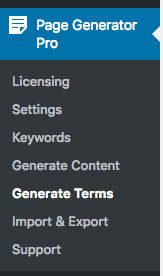
Add a Term Group
To add a new Term Group to Page Generator Pro, complete the Add New Taxonomy Group form on the left side of the screen: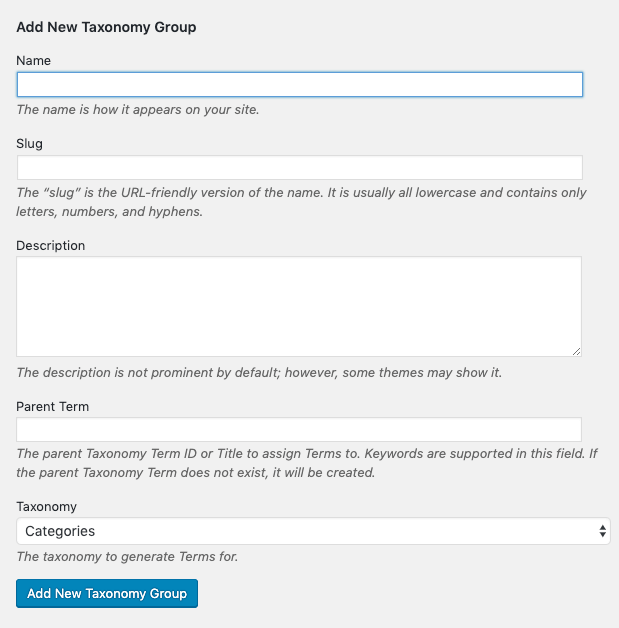
- Name: The Term Name. Keywords are supported here.
- Slug: The Term’s Slug. Keywords are supported here, and the slug is auto generated if left blank.
- Description: Optionally define the Term Description. Some Themes output this when viewing a Term.
- Parent Term: Optionally define the Parent Taxonomy Term ID, Title or Permalink to assign generated Terms to. Keywords are supported, and the parent term will be created if it does not already exist.
- Taxonomy: Select the Taxonomy to generate Terms for.
Click the Add New Taxonomy Group button when done.
Edit a Term Group
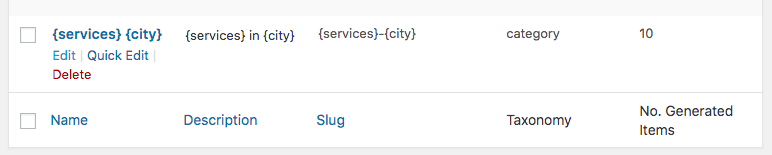
To edit an existing Term Group in Page Generator Pro, click the Title of the Group that you want to edit:
- Click on the Edit text below the Group you want to edit:
Delete a Term Group
- Hover the mouse cursor over the Group, and then click Delete:
Fields: Name
The Taxonomy Term Name for each generated Term. Supports keywords, which can be inserted manually. A different keyword data item is then chosen for each generated Term.
Fields: Description
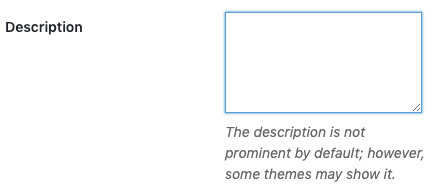
The Taxonomy Term’s Description for each Term. Also supports keywords, which can be inserted manually. The Description may be used by your Theme and SEO Plugins.
Fields: Slug (Permalink)

Automatically generated, but again can be manually specified with keywords. A different keyword data item is then chosen for each generated Term.
Slugs must only contain alphanumeric characters, dashes, and/or underscores. No spaces.
Fields: Parent Term
If the chosen Taxonomy (see below) is hierarchical, you can optionally specify a Parent Term.
When specified, all generated Terms will be assigned as children of the given Parent Term.
- Keywords can be used here.
- If the Parent Term already exists as a Term, the existing Term will be used as the parent for all generated Terms.
- If the Parent Term does not exist as a Term, a new Term will be created. All generated Terms will then be assigned to the newly created Parent Term.
If generating multiple Term levels that result in multiple Terms of the same name (for example, {parent} > {child} > {grandchild}), your {grandchild} level can specify the Parent Term as {parent}/{child} instead of {child}. This ensures that {grandchild} level Terms are more accurately set as descendants of the correct Parent > Child combination.
Fields: Taxonomy

Allows you to specify the Taxonomy that you want to generate Terms for.
Fields: Generation
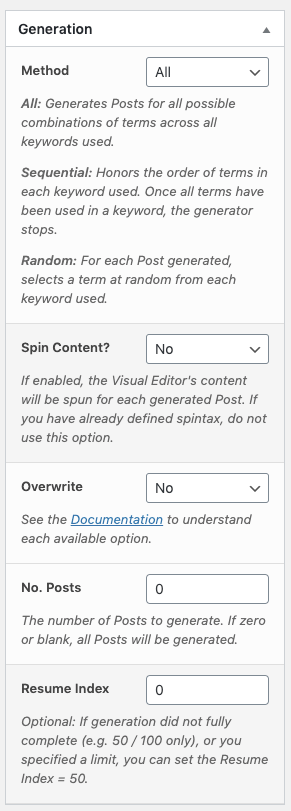
In conjunction with the Method option, there are other generation settings:
Fields: Generation: Spin Content
If enabled, the Description’s content will be spun for each generated Term, using the service defined in the Plugin’s Settings.
If you have already defined spintax, do not use this option.
Fields: Generation: Overwrite
When generating Terms, Page Generator Pro will attempt to see if an existing Term matching the Taxonomy and Permalink already exists. If so, the option set here determines whether that existing Term should be overwritten, not overwritten or skipped.
| Setting | Description |
|---|---|
| No |
|
| No, skip if existing Term generated by this Group |
|
| No, skip if existing Term exists |
|
| Yes, if existing Term generated by this Group |
|
| Yes, if existing Term exists |
|
Fields: Generation: Overwrite Sections

Overwrite Sections for Term Groups is available in Page Generator Pro 5.3.4, releasing Friday 21st November 2025 23:59 UTC
When the Overwrite setting above is set to a Yes option, an additional option is then displayed to define which sections to overwrite if generation would overwrite an existing Term:
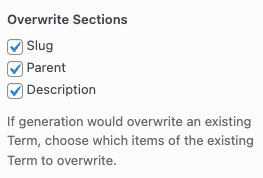
For example, if you have manually edited the descriptions on existing generated Terms, and do not want to overwrite those changes, you would deselect the Description option. The Plugin will, on generation, overwrite the existing generated Term’s other sections, but retain the Description on the existing generated Pages.
If the Overwrite setting above is set to a Yes option and the Plugin detects that a new Term would be created (for example, new Keyword Terms have been added since the previous generation), all sections of the new generated Term will be populated – regardless of the sections specified above. This is deliberate and by design, to ensure that new Terms do not have blank sections.
The Name is always overwritten, as this field is used to determine if an existing Term exists. WordPress does not permit two Terms of the same name.
Fields: Generation: Overwrite Sections: Advanced Custom Fields
In addition to the Overwrite Sections above, further sections may be displayed if:
- Advanced Custom Fields (or Advanced Custom Fields Pro) is active, and
- At least one Field Group has been configured to display on Term Groups.
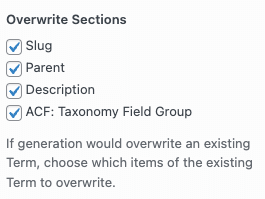
For example, if you have:
- An ACF Field Group called Example Field Group configured for both Term Groups and Categories
- Manually edited Field(s) within this Field Groupon existing generated Categories
– and you do not want to overwrite the manual changes made to the ACF Field(s), you would deselect the ACF: Example Field Group option.
The Plugin will, on generation, overwrite the existing generated Term’s other sections (Name, Description etc), but retain the ACF Field metadata for the Example Field Group on the existing generated Pages
Fields: Generation: Number of Terms
Choose the number of Terms to generate. If zero or blank, Page Generator Pro will attempt to produce all possible combinations based on the above generation method.
It’s useful to set this option if you have a large number of Terms and – in conjunction with the Resume Index below – want to chunk generation into smaller batches.
Fields: Generation: Resume Index
By default, Page Generator Pro starts at a zero based index for keyword terms. You can choose to start at a different index (if, for example, Page Generation did not fully complete), by setting Resume Index to restart on the nth iteration.
The Use Last Generated Index link will set the Resume Index’s value to the nth iteration that successfully generated.
Fields: Actions
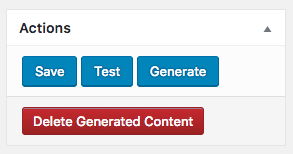
Once you have completed all fields, you have three options:
- Save: This saves the settings on the Generate screen.
- Test: This saves the settings on the Generate screen, and creates one test Term.
- Generate: This saves the settings on the Generate screen, and generates the required number of Terms.
If you have previously generated Term(s) from this Group, you will see a fourth option:
- Delete Generated Terms: This allows you to delete all existing Term(s) that were generated by this Group. This is useful if you made an error, and need to replace your existing Terms with revised content.