
Videos are not designed to be a substitute for instructions. Please refer to the detailed Documentation below.
Once you have defined your Group’s content, you’ll want to generate Pages / Terms from your Content Groups.
The Groups Table provides an overview of your Content Groups, as well as specific Actions that can be run to test, generate, manage generation and delete generated content:
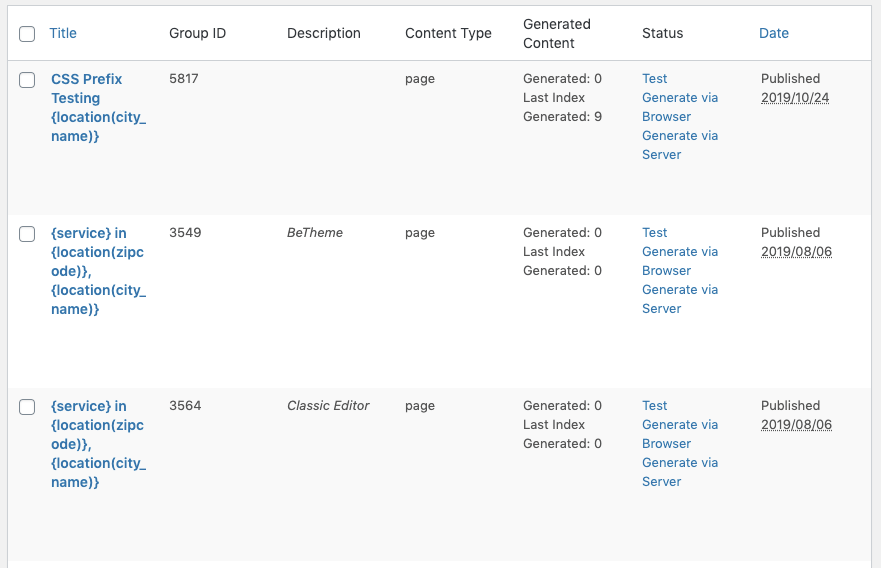
Status Column
The Status column displays either:
- Actions that can be performed on the Group, such as:
- Testing Content Generation,
- Generating Content via Browser,
- Generating Content via Server
- The current status of an action that is being performed, such as content generation.
These actions are also available when editing a Content Group:
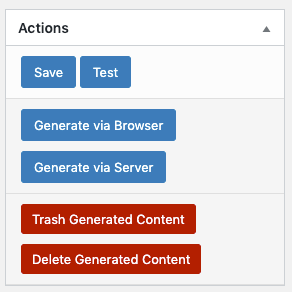

Don’t see these options when editing a Content Group? Gutenberg and some Page Editors won’t let us display them, so you’ll need to access them from the Content Groups table above, found at Page Generator Pro > Content Groups.
Test
It’s always recommended that you do this before generating all of the content.
The Test method generates a single, draft Page, Post or Custom Post Type, with verbose error output if elements fail (for example, a shortcode).
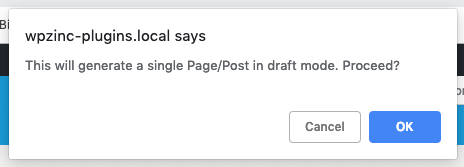
When clicking this action, a message is displayed on screen confirming you want to generate a Test Page:
Once confirmed, an on screen notification will confirm whether the Test succeeded, with a link to the draft Page / Post / Custom Post Type:

Because the Test mode generates an item with a draft status, it won’t have a fully qualified permalink.
Click the preview link to view the test content, where you can confirm correct working functionality, and make changes to your Group as necessary.
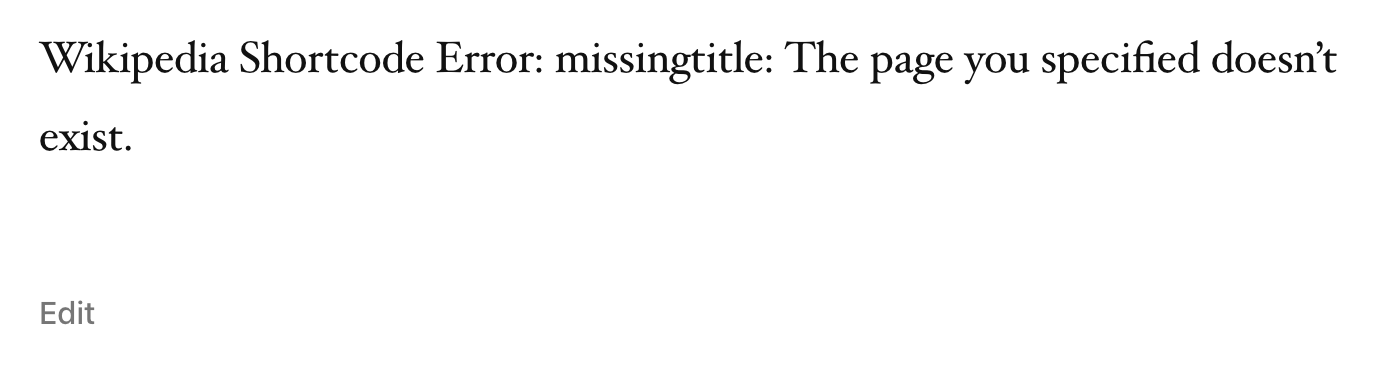
If error(s) occurred with the test, they will be displayed on the content. For example, if a Wikipedia shortcode results in no content being found, you might see the following error:
To test generation using a different Keyword Term, change the Resume Index option in the Content Group.
Generate Methods
Three Generate methods are provided. Refer to each respective method’s Documentation for further information.
| Method | Displays On Screen Log / Progress | Active Internet Connection Required | Keep Browser Window/Tab Open | Documentation |
|---|---|---|---|---|
| Browser | Yes | Yes. Your computer must remain connected to the internet, so that the generation process in the browser can communicate with the Plugin for each Page that is Generated | Yes. Your browser window/tab must remain open for the generation process in the browser to run | Generate via Browser |
| Server | No | No | No | Generate via Server |
| WP-CLI | Yes | No | No. The WP-CLI process must remain open and running, if manually invoked through SSH. | Generate: WP-CLI |
When any of these are run, the Content Group is locked and editing is prevented. This is by design, to ensure that content is not edited part way through the generation routine. Should you wish to make a change to the Content Group, refer to the Cancel Generation section below, which unlocks the Group, making it available for editing.
Cancel Generation
Once Generation has started, it can be stopped in one of two ways:
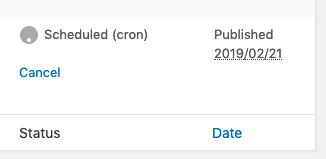
In the Groups Table, click the Cancel action:
Generate via Browser: Click the Stop Generation button on the Generate screen: 
This will not delete any existing Generated Content. To do this, refer to the rest of the Documentation below.
Generated Items
The Generated Items column displays the number of Posts / Pages / CPT’s generated by each Group.
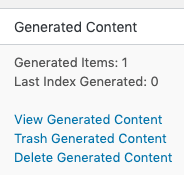
Where content has been generated, three actions are available:
View Generated Content
This allows you to view a list of Pages, Posts or Custom Post Types generated by this Group.
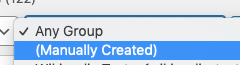
You can also view a list of Pages, Posts or Custom Post Types by Group using the dropdown filter on WordPress’ Pages and Posts screens:
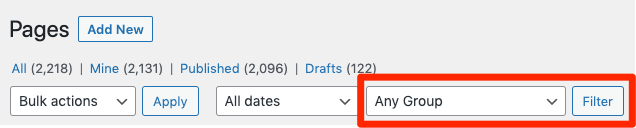
To view a list of Pages, Posts or Custom Post Types not generated by a Content Group, use the Manually Created option:
Trash Generated Content
This allows you to trash all existing Page(s) that were generated by this Group.
Any images that were added to the Media Library by Page Generator Pro, for any generated Page that is trashed, will not be deleted.
Delete Generated Content
This allows you to permanently delete all existing Page(s) that were generated by this Group. This is useful if you made an error, and need to replace your existing Pages with revised content.
Any images that were added to the Media Library by Page Generator Pro, for any generated Page that is deleted, will be deleted.
Any images that already existed in the Media Library and were used for any generated Page will not be deleted.
Export Generated Content
If you’re running a compatible WordPress Export Plugin, links may be displayed here to export the generated content. Refer to the Export Generated Content Documentation.
Exclude Pages from Regeneration
Sometimes, you’ll want to regenerate a Content Group, to regenerate the Pages, Posts or Custom Posts – but you may wish to preserve some existing generated pages.
There are two options available.
Automatically
Refer to the Overwrite documentation, with options to selectively overwrite parts of pages.
Manually
The option to manually exclude specific existing generated pages from being overwritten is available in Page Generator Pro 5.5.5, releasing Tuesday May 26th 2026 23:59 UTC.
To manually exclude specific existing generated pages from being regenerated, regardless of the overwrite setting used above:
- Edit the generated Page, Post or Custom Post in WordPress
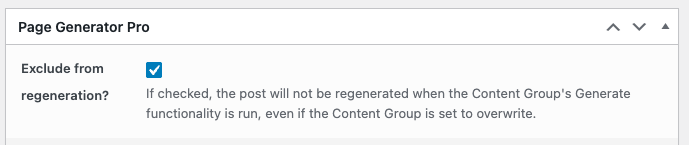
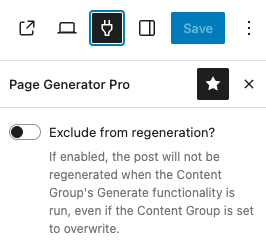
- Enable the “Exclude from regeneration” option
- Classic Editor: Use the meta box
- Gutenberg / Block Editor: Click the plugin icon on the top right corner, and then toggle the option
- Save the Page
Regenerate a Single Page
The option to regenerate a single previously generated Page is available in Page Generator Pro 5.5.9 and higher, releasing Monday July 27th 2026 23:59 UTC.
Sometimes you’ll spot a change that only needs applying to one generated Page – a typo in a specific city page, an image that needs refreshing, or a Dynamic Element you want re-rendered against the latest Keyword data. Rather than regenerating the entire Content Group, you can regenerate a single Page directly from the WordPress Posts, Pages or Custom Post Type list.
Regenerate a single generated Page is available as a row action on any Page, Post or Custom Post that was previously generated by Page Generator Pro:
Only WordPress users with the manage_options capability will see this action.
Pages that have been manually excluded from regeneration will not display the Regenerate with Page Generator Pro action.
- Navigate to Pages, Posts, or your relevant Custom Post Type in the WordPress Administration
- Hover over the row of the generated Page you want to regenerate
- Click Regenerate

- Confirm the prompt
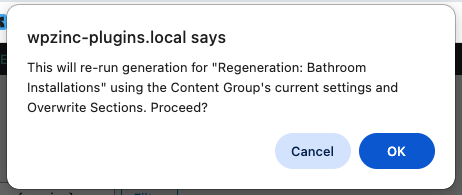
Regeneration runs immediately, and a modal shows the result once complete along with a View Page link.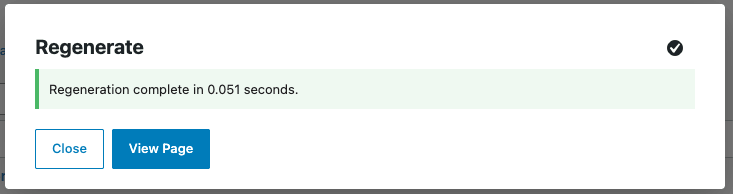
Regeneration respects the Content Group’s Overwrite and Overwrite Sections settings. If Overwrite is set to No, the existing Page will be skipped and left untouched – set Overwrite to Yes on the Content Group first if you want the Page’s content to be refreshed.
Common Issues
Refer to the Debugging Issues Documentation, which covers steps to resolve most issues when generating Content or Terms.